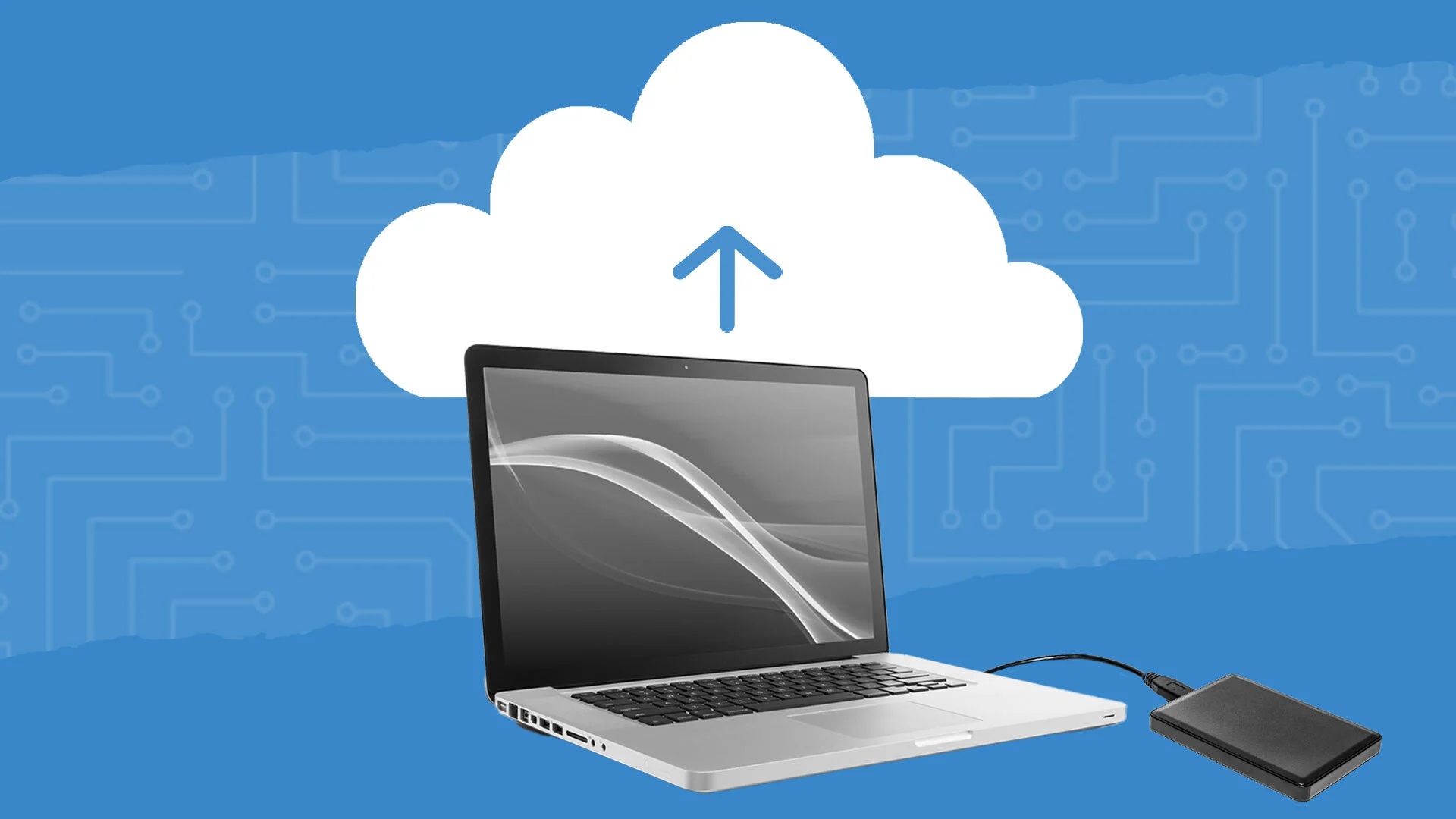
Imagine losing years of photos, important work documents, or personal files in a sudden computer crash or accidental deletion. I’ve been there—and the panic and frustration are unforgettable. After a close call where I almost lost all my work, I realized that having a solid data backup plan is not optional—it’s essential.
In this guide, I’ll share real-life, practical data backup tips, step-by-step solutions, and actionable advice to protect your files, prevent data loss, and give you peace of mind.
Why Data Backup Is Crucial
Data loss can happen for many reasons:
-
Hardware Failure: Hard drives and SSDs can fail unexpectedly.
-
Accidental Deletion: We all make mistakes and sometimes delete files unintentionally.
-
Software Corruption: System crashes, viruses, or faulty apps can corrupt files.
-
Theft or Loss: Laptops, phones, or external drives can be stolen.
-
Natural Disasters: Fires, floods, or other events can destroy physical devices.
Having a backup ensures you can recover your important files quickly without stress.
Step-by-Step Data Backup Tips
1. Use External Hard Drives
Why it works: Physical drives provide reliable offline storage.
How to do it:
-
Purchase an external hard drive (1TB or higher for large file storage).
-
Connect it to your computer and copy important files regularly.
-
Consider organizing files in folders for easy retrieval.
Tip: Keep the drive disconnected when not in use to avoid malware or ransomware risks.
2. Use Cloud Storage
Why it works: Cloud services store your files online, accessible from anywhere.
Popular Options:
-
Google Drive – 15GB free, integrates with Gmail.
-
Dropbox – 2GB free, simple file syncing.
-
OneDrive – 5GB free, great for Windows users.
How to do it:
-
Sign up for a cloud service.
-
Upload essential files and set auto-sync for convenience.
Tip: Use strong passwords and enable two-factor authentication for security.
3. Automate Backups
Why it works: Automation ensures you don’t forget to backup your data.
How to do it:
-
Windows: Use File History or Backup and Restore.
-
Mac: Use Time Machine to schedule automatic backups.
-
Cloud: Enable auto-sync features in your chosen service.
Tip: Automating reduces the risk of human error and keeps your files updated.
4. Keep Multiple Backup Copies
Why it works: Relying on a single backup is risky.
How to do it:
-
Follow the 3-2-1 rule:
-
3 copies of your data.
-
2 different storage types (external drive + cloud).
-
1 offsite copy in case of fire or theft.
-
Example: I keep work files on my laptop, an external SSD at home, and synced to Google Drive. This has saved me multiple times during computer crashes.
5. Use Versioned Backups
Why it works: Versioning keeps previous file versions so you can recover accidental changes.
How to do it:
-
Cloud storage services like Google Drive or Dropbox automatically keep previous versions.
-
Backup software like Acronis or Backblaze also support versioning.
Tip: Versioning is particularly useful for documents and projects that change frequently.
6. Encrypt Sensitive Data
Why it works: Encryption protects sensitive files from unauthorized access.
How to do it:
-
Use built-in encryption tools (BitLocker on Windows, FileVault on Mac).
-
Some cloud services offer encryption options.
-
Consider password-protecting external drives.
Tip: Keep your encryption keys or passwords safe—without them, recovery is impossible.
7. Test Your Backups Regularly
Why it works: A backup is only useful if it can be restored.
How to do it:
-
Periodically try restoring a few files from each backup.
-
Ensure cloud sync completed successfully.
-
Check external drives for errors.
Tip: Make testing a quarterly habit to catch issues early.
8. Backup Mobile Devices
Why it works: Phones and tablets contain important photos, contacts, and documents.
How to do it:
-
iOS: Use iCloud for automatic backups.
-
Android: Use Google Drive or manufacturer-specific tools.
-
Transfer important files to external storage or cloud regularly.
Tip: Don’t rely on your phone as the only storage for critical data.
9. Consider a NAS (Network-Attached Storage)
Why it works: NAS allows multiple devices to backup and access files over a local network.
How to do it:
-
Purchase a NAS device from brands like Synology or QNAP.
-
Set up scheduled backups for all computers in your home.
-
Enable remote access for additional convenience.
Tip: NAS is ideal for home offices or small teams needing centralized storage.
10. Keep a Backup Checklist
Why it works: Having a checklist ensures no important data is overlooked.
How to do it:
-
Identify key files (documents, photos, videos, work projects).
-
Decide storage locations (cloud, external, NAS).
-
Schedule backups (daily, weekly, monthly).
-
Test and update your backup plan regularly.
Practical Tips to Avoid Data Loss
-
Don’t rely on a single backup.
-
Use both cloud and offline backups.
-
Encrypt sensitive information.
-
Schedule regular backups.
-
Verify backups periodically.
-
Avoid storing backups in unsafe locations.
Common Mistakes to Avoid
-
Backing up infrequently or inconsistently.
-
Using only one storage method (cloud or physical).
-
Forgetting to test backup files.
-
Storing backups in the same location as the main device.
-
Ignoring encryption for sensitive files.
Real-Life Example: Avoiding Data Disaster
I once accidentally deleted an entire folder of client files. Thanks to my automated cloud backup and external hard drive, I restored the folder within minutes. This experience taught me the importance of redundant, automated backups—without them, I would have faced significant losses.
FAQs About Data Backup
1. How often should I back up my data?
For important files, daily backups are ideal. For general files, weekly backups may suffice.
2. Is cloud storage safe?
Yes, if you use strong passwords, two-factor authentication, and reputable services.
3. What is the 3-2-1 backup rule?
Keep 3 copies of data, on 2 different storage types, with 1 offsite copy for safety.
4. Can I backup my phone to my computer?
Yes. iOS users can use iTunes or Finder; Android users can use Google Backup or manual transfer.
5. What if my backup fails?
Test backups regularly and maintain multiple storage methods to avoid total data loss.
Conclusion: Protect Your Data Before It’s Too Late
Data loss is stressful, but proactive backups can prevent disasters. By combining external drives, cloud storage, automation, versioning, and regular testing, you can ensure your files are safe and recoverable at all times.
Remember: backups are not just an option—they’re insurance for your digital life. Start implementing these tips today, and gain peace of mind knowing your data is secure.