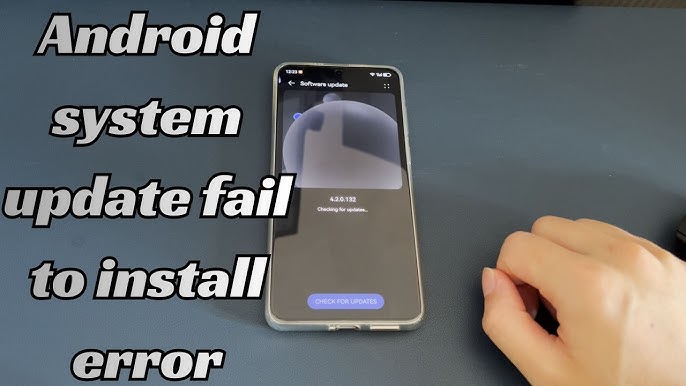
You’ve probably been there: your phone notifies you that a software update is available, and you excitedly tap “Update.” Then… nothing happens. Or worse—the update starts, gets stuck, or your phone behaves strangely afterward. Frustrating, right? I’ve had this happen multiple times on both Android and iOS devices, and it can be stressful, especially when updates are supposed to improve security and performance.
The good news is that most phone update problems have practical, easy-to-follow solutions. In this article, I’ll walk you through why updates fail, how to fix them, and tips to prevent issues in the future—based on real-life experience, not just theory.
Why Phone Updates Fail
Before we jump into fixes, it helps to understand why updates fail. From my own experience, common causes include:
-
Insufficient storage: Updates often need extra space temporarily.
-
Poor internet connection: Interruptions can corrupt the update process.
-
Battery issues: Some phones won’t update unless the battery is sufficiently charged.
-
Software glitches: Conflicting apps or previous system errors can block updates.
-
Server issues: Sometimes, the update servers themselves are overloaded.
-
Unsupported devices: Older phones may struggle with new updates due to hardware limitations.
Knowing these causes helps you target the right solution instead of blindly trying fixes.
Step-by-Step Solutions for Phone Update Problems
Here’s a practical, beginner-friendly guide to solving phone update issues.
1. Check Your Storage Space
A common reason updates fail is insufficient storage.
-
Go to Settings → Storage and see how much free space is available.
-
Clear temporary files, uninstall unused apps, or move photos and videos to cloud storage.
I once struggled to install a major Android update until I cleared 4GB of photos—I had plenty of space afterward, and the update completed flawlessly.
2. Ensure a Stable Internet Connection
A weak or intermittent connection can disrupt updates.
-
Use Wi-Fi instead of mobile data whenever possible.
-
Avoid updating over public Wi-Fi with unstable connections.
-
Restart your router if needed.
For large updates, a fast, stable connection is critical. In my experience, even a minor Wi-Fi dropout can corrupt the update.
3. Charge Your Phone
Most phones require at least 50–60% battery for updates, and some insist on being plugged in.
-
Charge your phone before starting the update.
-
Keep it connected during the process to avoid interruptions.
I once tried updating at 25% battery, and the phone refused to start the process—a simple charge solved it.
4. Restart Your Device
A fresh restart can resolve many temporary glitches that block updates.
-
Turn off your phone completely, wait 30 seconds, and turn it back on.
-
Retry the update.
Sometimes, apps running in the background or minor software bugs are the real culprits, and a restart clears them.
5. Clear Cache (Android)
For Android phones, corrupted cache can prevent updates.
-
Go to Settings → Storage → Cached Data → Clear Cache.
-
For Samsung or other brands, you may need to clear cache partition via recovery mode.
I did this on an old Samsung phone, and the update finally installed after being stuck for hours.
6. Update Manually
If automatic updates fail, manual updates often work:
-
iOS: Use iTunes (or Finder on Mac) to update via computer.
-
Android: Visit your phone manufacturer’s website for the latest firmware and follow their instructions.
Manual updates bypass some software conflicts that block over-the-air updates.
7. Check for System Glitches
If updates fail repeatedly, there may be an underlying software issue:
-
Backup your phone first (see Data Backup Tips).
-
Perform a factory reset as a last resort.
-
Restore your data and try updating again.
This worked for me when my phone got stuck on an iOS beta update—I had to reset, then update to the stable version successfully.
8. Avoid Common Mistakes
-
Interrupting the update: Don’t turn off the phone mid-update; it may brick your device.
-
Using unofficial firmware: Only download updates from your phone’s official source.
-
Neglecting backups: Always backup before major updates; errors can cause data loss.
-
Ignoring warnings: Pay attention to system prompts and requirements before updating.
Real-Life Example
A few months ago, my Android phone failed to install a security update. The update kept failing at 60%. Here’s what I did:
-
Cleared 2GB of space.
-
Restarted the phone.
-
Switched to a stronger Wi-Fi connection.
-
Cleared the cache.
After these steps, the update installed successfully. It was a relief—my phone ran smoother and security patches were applied.
FAQs
1. My phone says “Not Enough Storage,” but I have free space. What should I do?
Check for hidden system files and cached data. Clearing the cache often frees up additional space for updates.
2. Can I update my phone over mobile data?
Technically yes, but it’s not recommended for large updates. Use Wi-Fi for stability and to avoid high data charges.
3. My phone keeps restarting during an update. Is it broken?
Not necessarily. Restart loops can happen due to corrupted files. Try clearing the cache or updating via a computer.
4. Will updating slow down my older phone?
Updates can strain older hardware. If performance drops, consider lightweight updates or incremental updates instead of major system upgrades.
5. Is it safe to skip an update?
Skipping minor updates is usually safe, but security and critical updates should never be skipped—they fix vulnerabilities and improve stability.
Conclusion: Keep Your Phone Updated Without Headaches
Phone update problems are common, but most can be fixed with simple steps: free up storage, ensure a strong internet connection, charge your phone, restart, and clear caches. For stubborn issues, manual updates or a factory reset may be necessary.
From personal experience, patience and preparation make all the difference. Always backup your data first, follow the steps carefully, and your phone will stay secure and perform optimally.
Remember: A well-updated phone is safer, faster, and more reliable. Don’t let update problems slow you down—tackle them proactively.