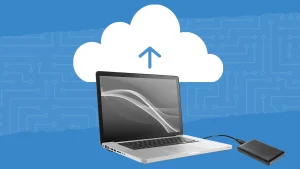
Picture this: You’re finishing a critical project, maybe a presentation, a financial spreadsheet, or precious family photos, and suddenly… your computer crashes. Hard drive failure, accidental deletion, malware—any of these can wipe out months or even years of work in an instant. I’ve been there myself. A few years ago, a hard drive crash on my laptop destroyed months of documents and photos I hadn’t backed up. It was a painful lesson, but it taught me the value of reliable data backups.
The good news? Protecting your files doesn’t have to be complicated or expensive. In this article, I’ll share practical, actionable data backup tips that will keep your files safe and give you peace of mind—based on real-life experience, not just theory.
Why You Need a Data Backup
Many people underestimate the importance of backups. You might think, “I won’t lose anything important,” but in reality, data loss can happen to anyone:
-
Hardware failure: Hard drives and SSDs can fail without warning.
-
Accidental deletion: It’s easier than you think to delete something important by mistake.
-
Malware or ransomware attacks: Malicious software can encrypt or erase files.
-
Natural disasters: Fires, floods, or theft can destroy your devices.
-
Software bugs or corruption: System errors can corrupt files, making them unusable.
Backing up your data ensures that no matter what happens, you always have a safe copy to restore. I learned this the hard way, and ever since, I treat backups like insurance: essential, not optional.
Step-by-Step Data Backup Tips
Here’s a practical guide you can follow, whether you’re a beginner or slightly tech-savvy.
1. Identify What Needs to Be Backed Up
Not every file needs a backup, but some are critical. Focus on:
-
Documents and spreadsheets: Work, school, or personal records.
-
Photos and videos: Family memories, creative projects.
-
Application settings: Browser bookmarks, app configurations, and software licenses.
-
Emails: If you store them locally, not in the cloud.
I keep a checklist of important folders and files—it helps me quickly decide what to back up and prevents unnecessary clutter.
2. Use the 3-2-1 Backup Rule
The 3-2-1 backup rule is simple and highly effective:
-
3 copies of your data: Original + 2 backups.
-
2 different storage types: For example, external hard drive + cloud storage.
-
1 offsite copy: Store a backup in a different location (like cloud storage) to protect against theft, fire, or flood.
Following this rule, I’ve avoided losing a single file even when a hard drive failed last year.
3. Choose Reliable Backup Methods
Here are the most common options:
a) External Hard Drives or SSDs
-
Pros: Fast, one-time cost, no internet required.
-
Cons: Can fail, vulnerable to theft or damage.
Tip: Label and organize backups by date. For example, “Photos_Backup_2026-03” helps you track versions.
b) Cloud Storage
-
Options: Google Drive, Dropbox, OneDrive, iCloud.
-
Pros: Offsite, automatic sync, accessible from anywhere.
-
Cons: Requires internet, monthly storage costs for large files.
I personally use a combination of local and cloud backups for redundancy. For instance, documents go to OneDrive, while photos go to Google Drive.
c) Network Attached Storage (NAS)
-
Pros: Centralized storage for multiple devices at home, supports RAID for redundancy.
-
Cons: Higher upfront cost, needs setup knowledge.
If you work with large files regularly, NAS is a lifesaver—it’s like having a private cloud at home.
4. Automate Your Backups
Manual backups are easy to forget. Automation ensures your files are always safe.
-
Windows: Use File History or Backup and Restore (Windows 7) to schedule backups.
-
Mac: Use Time Machine for automatic backups to external drives or network storage.
-
Cloud storage: Most services offer automatic syncing.
I automated my backups, and now even if I forget, everything important is securely saved.
5. Keep Versions of Your Files
Sometimes, the latest version of a file isn’t the one you want. Versioned backups allow you to restore previous versions.
-
Cloud services like Google Drive and Dropbox save file versions for 30 days (or more with premium plans).
-
Some backup software lets you schedule multiple versions on external drives.
Once, I accidentally deleted a chapter of a writing project. Thanks to versioned backups, I restored it within minutes.
6. Test Your Backups Regularly
A backup is useless if it doesn’t work. Test it:
-
Restore a few files from your backup to ensure they are readable.
-
Check that automated backups are running correctly.
I schedule a “backup test” every 3 months. It only takes 10–15 minutes, but it prevents major headaches later.
7. Secure Your Backups
Backups themselves can be a target, especially for sensitive data.
-
Encrypt your backups when possible. Many cloud providers and backup software offer encryption.
-
Use strong passwords and enable two-factor authentication for cloud accounts.
-
Keep external drives in a safe place, preferably locked or fireproof.
I learned this after almost losing work when a neighbor borrowed an external drive without realizing it contained sensitive files.
8. Decide on a Backup Frequency
How often you back up depends on how often your files change:
-
Daily: For work documents or creative projects.
-
Weekly: For general personal files like photos or videos.
-
Monthly: For rarely updated archives.
I have daily automated backups for work files, weekly for family photos, and monthly for old archives.
Common Mistakes to Avoid
-
Backing up everything to only one location: Always use multiple locations.
-
Ignoring large files: Photos, videos, and project files are often the ones you regret losing.
-
Forgetting offsite storage: Local disasters like fire or theft can destroy everything.
-
Skipping tests: Always confirm backups are functional.
-
Neglecting security: A backup is useless if it can be accessed by unauthorized people.
Real-Life Example
A few years ago, I lost my laptop to a power surge. Everything on the internal hard drive was gone. But because I had automated backups:
-
Documents were on OneDrive.
-
Photos were on Google Drive.
-
Older project files were on an external SSD stored in a safe.
I was able to restore everything within a day. Without those backups, I would have lost years of work and memories. That experience turned me into a backup evangelist.
FAQs
1. How much storage do I need for backups?
It depends on your data. A simple rule: 1.5–2x the size of the files you want to back up. For example, if you have 500GB of files, aim for at least 750GB–1TB of backup storage.
2. Is cloud backup safe?
Yes, reputable cloud providers encrypt your data and use secure servers. Enable two-factor authentication for extra security.
3. Can I back up mobile devices too?
Absolutely. iOS and Android devices have built-in backup tools. iCloud for iPhones, Google Backup for Android. Photos, contacts, and app data can all be backed up automatically.
4. How do I restore files from a backup?
It depends on your method. Cloud storage usually has a restore button. For external drives, copy the files back to their original location. Test restores regularly to ensure success.
5. How often should I replace my backup drives?
External drives can fail over time. Replace them every 3–5 years, and always have at least one additional backup location.
Conclusion: Don’t Wait Until It’s Too Late
Backing up your data may feel tedious, but it’s one of the most important habits you can develop. Using a combination of local and cloud backups, automating the process, keeping versions, and securing your files ensures that you’ll never face permanent data loss.
From personal experience, nothing gives more peace of mind than knowing your files are safe—whether it’s work documents, precious photos, or personal projects. Start today, even with a single external drive or cloud account. Once you have a reliable system in place, maintaining it becomes effortless.
Remember: Data loss is inevitable, but losing everything is avoidable. Back up now.