I still remember the afternoon my laptop sounded like a jet engine preparing for takeoff. I was in the middle of editing a video project, and the fan was screaming so loudly that my roommate asked if something was wrong. Then the screen froze. The cursor stopped moving. Thirty seconds later, the laptop shut itself down without warning. When I finally got it to boot again, I checked the temperatures and nearly fell out of my chair. The CPU was hitting 98 degrees Celsius, just two degrees away from the thermal limit. I had been ignoring the warning signs for months. The sluggish performance, the burning hot keyboard, the constant fan noise. That forced shutdown was my laptop’s desperate cry for help, and it finally made me take overheating seriously.
If your laptop feels like a stovetop, sounds like a vacuum cleaner, or randomly shuts down during demanding tasks, you are not alone. Laptop overheating is one of the most common performance problems, and it affects everything from budget machines to high-end gaming rigs. The good news is that most overheating issues can be fixed without buying a new computer. This guide will walk you through practical, proven solutions that actually work.
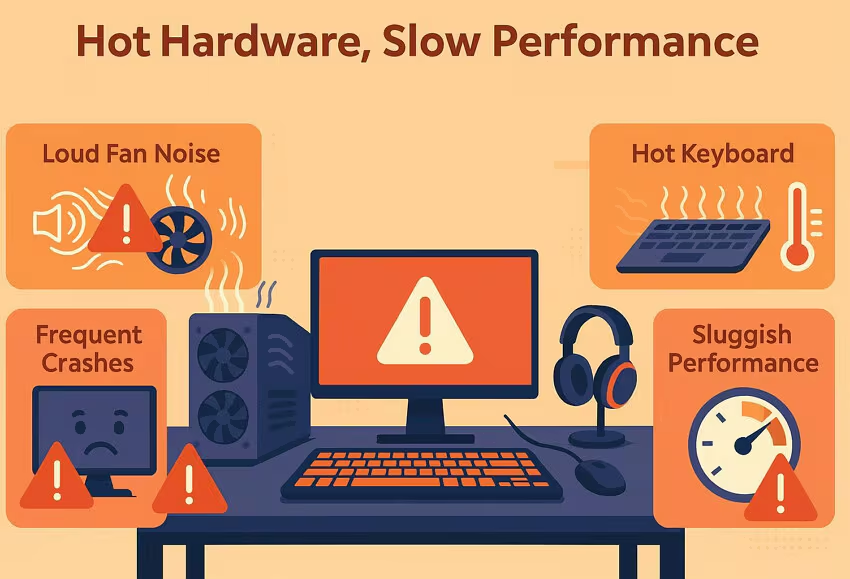
Why Laptops Overheat: The Science Behind the Problem
Laptops are engineering marvels, packing powerful processors and graphics chips into a case barely thicker than a notebook. But that compact design comes with a major trade-off. There is very little space for heat to escape. When your CPU and GPU work hard, they generate significant heat. In a desktop computer, large fans and spacious cases allow that heat to dissipate naturally. In a laptop, the same heat is trapped in a tiny enclosure with minimal airflow.
Over time, dust accumulates inside the chassis, clogging vents and coating fan blades. Thermal paste, the material that transfers heat from your processor to the cooling system, dries out and becomes less effective. Software updates may increase hardware demands, pushing your components harder than they were designed to handle. And perhaps most commonly, we simply use our laptops in ways that block the very vents meant to keep them cool.
When temperatures rise too high, your laptop protects itself through a process called thermal throttling. The processor automatically reduces its speed to generate less heat. This is why an overheating laptop feels painfully slow. The performance drop is not a hardware failure. It is a safety mechanism. If throttling is not enough, the laptop will shut down entirely to prevent permanent damage.
Immediate Fixes You Can Try Right Now
Before you open your laptop or buy any accessories, there are several quick changes that can lower temperatures within minutes.

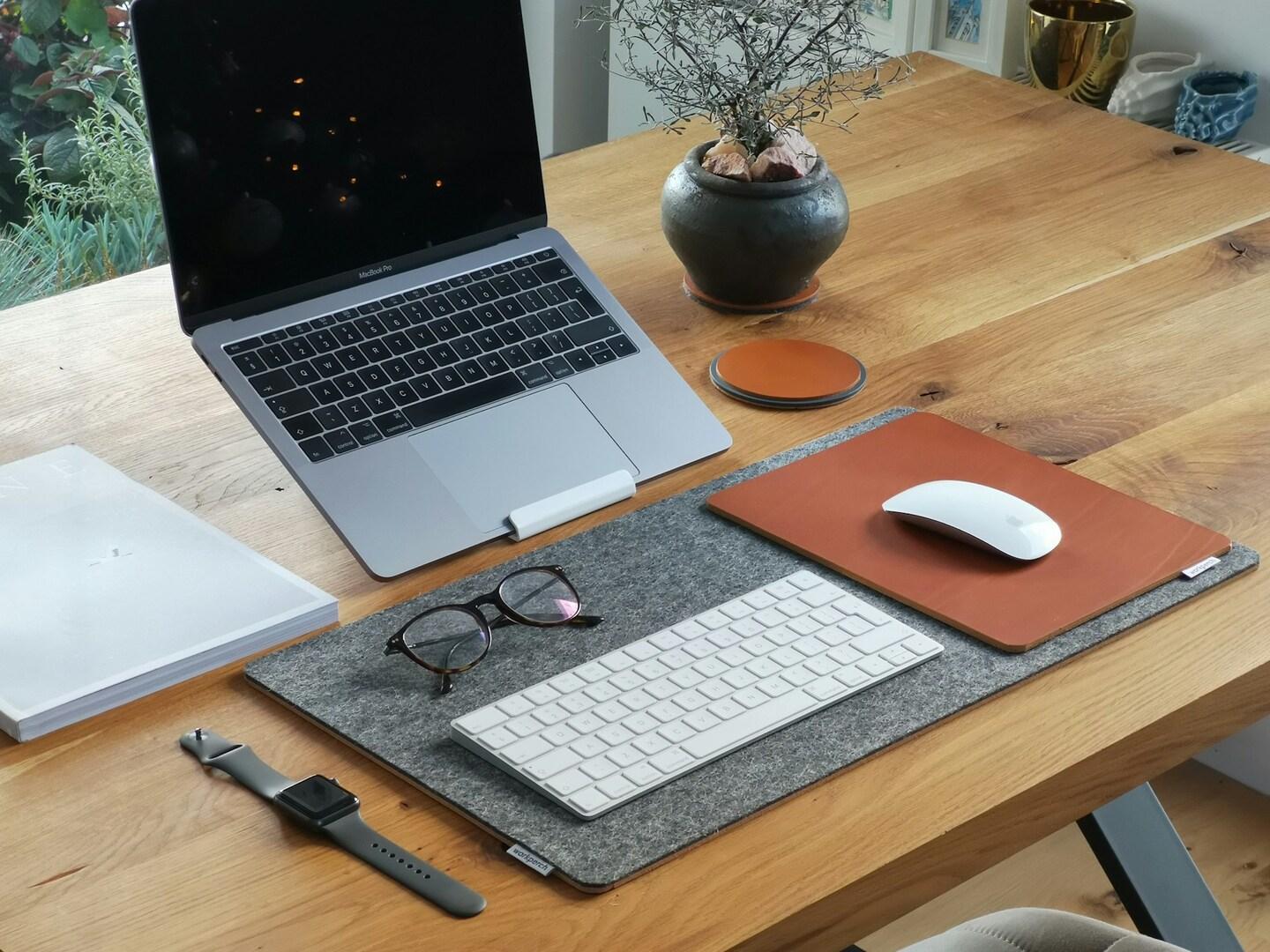
Use your laptop on a hard, flat surface. This is the single most important habit you can build. Beds, couches, blankets, and even your lap block the intake vents located on the bottom of most laptops. Without cool air flowing in, the internal temperature rises rapidly. Place your laptop on a desk, table, or even a hardcover book. The difference in temperature can be dramatic.
Close unnecessary applications. Every open program demands CPU and memory resources, which generate heat. Check your task manager and close browser tabs, background apps, and software you are not actively using. Streaming music, cloud backups, and chat applications running in the background all contribute to heat buildup.
Adjust your power settings. Windows High Performance mode keeps your processor running at maximum speed even when you do not need it. Switch to Balanced or Power Saver mode for everyday tasks. This reduces power consumption and heat generation without a noticeable impact on web browsing, document editing, or video playback.
Lower your screen brightness. The display is a significant heat source, especially on laptops with high-resolution panels. Reducing brightness to a comfortable level reduces power draw and helps keep the chassis cooler.
Keep your environment cool. Ambient temperature matters more than people realize. A laptop in a 30-degree Celsius room will run significantly hotter than the same laptop in a 20-degree room. Use air conditioning, a fan, or simply move to a cooler area if possible. Never leave your laptop in direct sunlight or inside a parked car.
Cleaning Your Laptop: The Most Effective Free Fix
Dust is the silent enemy of laptop cooling. Over months and years, it accumulates in vents, clings to fan blades, and coats heat sink fins. This dust acts like insulation, trapping heat inside the chassis and forcing your fans to work harder while moving less air. Cleaning is the highest-impact maintenance task you can perform, and it costs almost nothing.
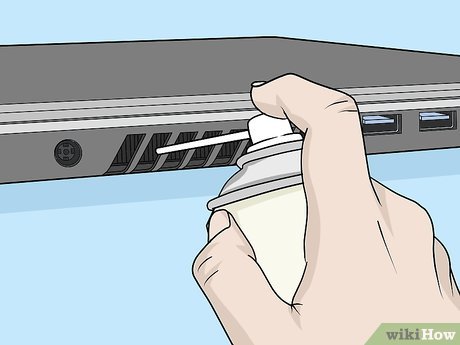
Start with the external vents. Turn off your laptop, unplug it, and remove the battery if possible. Use a can of compressed air to blow short bursts into the intake and exhaust vents. Hold the can upright to prevent propellant from spraying out. Angle the vents downward so gravity helps carry the dust away. Repeat this from multiple angles to dislodge as much debris as possible.
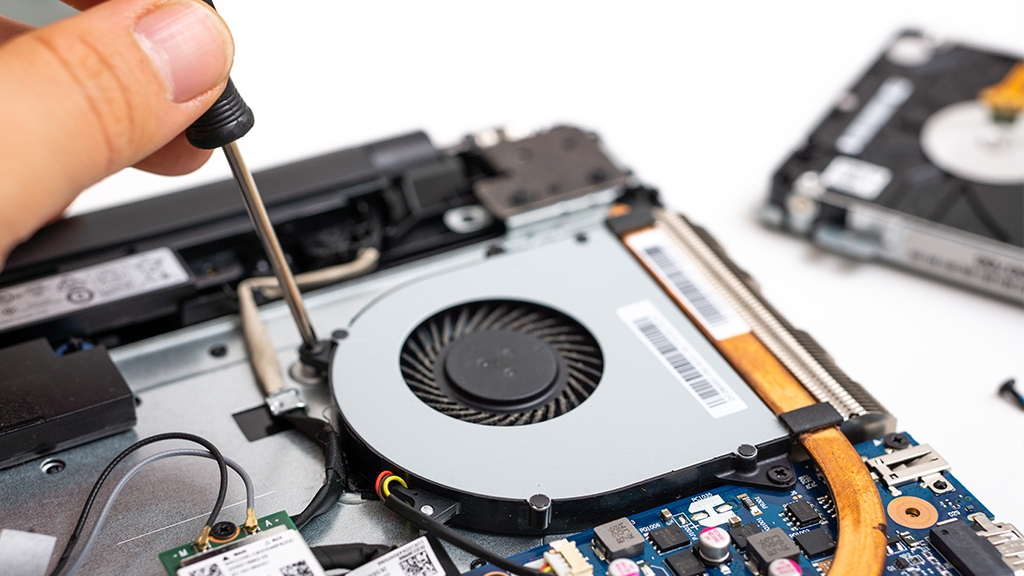
If you are comfortable opening your laptop, the internal cleaning is even more effective. Remove the bottom panel according to your manufacturer’s service manual. Use compressed air to clean the fan blades, heat sink fins, and surrounding areas. A soft brush can help dislodge stubborn dust. Be gentle around delicate components. If you see a thick mat of dust between the fan and the heat sink, carefully remove it with tweezers.
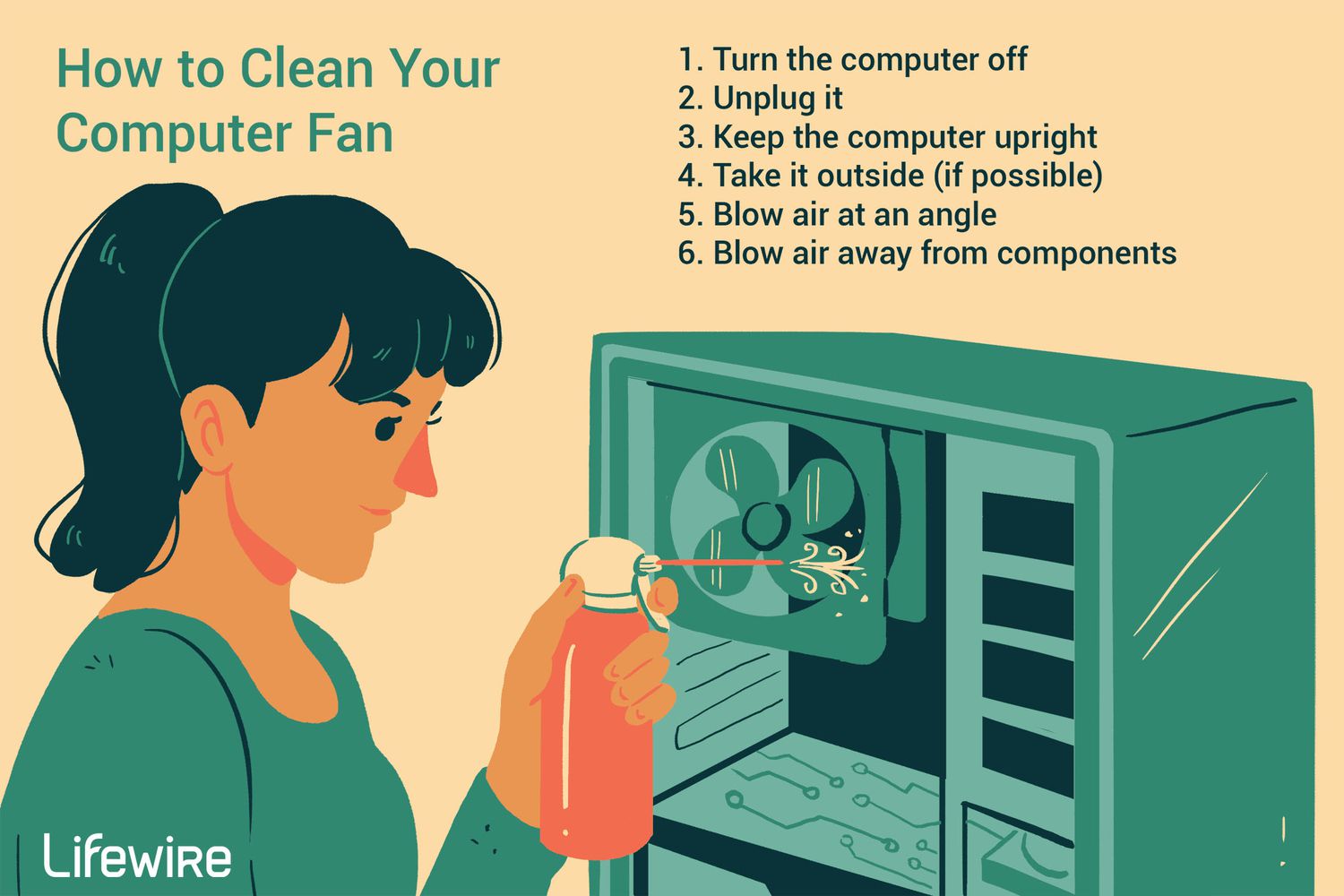
For gaming laptops or machines that run hot regularly, this internal cleaning should be done every four to six months. For general use laptops, once a year is usually sufficient. The first time you clean a dusty laptop, the temperature drop can be 10 to 20 degrees Celsius.
Software Solutions: Managing Heat Without Opening the Case
Not everyone is comfortable opening their laptop, and some designs make internal access difficult. Fortunately, software adjustments can significantly reduce temperatures.
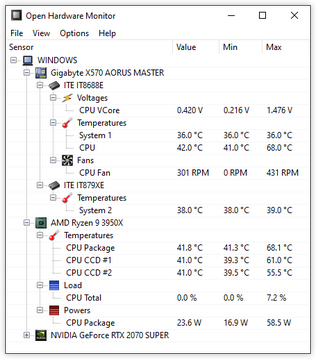
Monitor your temperatures. You cannot manage what you do not measure. Free tools like HWMonitor, Core Temp, or Open Hardware Monitor display real-time CPU and GPU temperatures. For most laptops, idle temperatures should be between 35 and 50 degrees Celsius. Under heavy load, anything consistently above 85 degrees is concerning. Knowing your baseline helps you evaluate whether your fixes are working.
Cap your frame rates. If you game on your laptop, uncapped frame rates push your GPU to its absolute limit, generating enormous heat for a benefit you cannot even see. Use your graphics card control panel to set a global frame rate limit of 60 frames per second, or match your display’s refresh rate. In most games, this single change can drop temperatures by 5 to 10 degrees without any visible difference in smoothness.
Reduce in-game graphics settings. Ultra settings are beautiful but thermally expensive. Lower shadow quality, turn off ray tracing, and reduce anti-aliasing. These settings have the biggest impact on GPU load and therefore heat generation. Medium or high settings still look excellent on a laptop screen while keeping temperatures manageable.
Undervolt your CPU. Undervolting reduces the voltage supplied to your processor, which directly reduces heat output and power consumption. Modern tools like Intel XTU or ThrottleStop make this accessible even for beginners. A modest undervolt of 50 to 100 millivolts is often stable and can lower temperatures by 5 to 15 degrees. Always test for stability after making changes, and research your specific processor model for safe starting values.
Limit background processes. Open Task Manager and examine the Startup tab. Disable applications that launch automatically but serve no immediate purpose. Cloud storage sync, update checkers, and media players often run constantly in the background, consuming CPU cycles and generating heat.
Hardware Upgrades and Accessories
When software and cleaning are not enough, physical upgrades and accessories can make a significant difference.
Cooling pads are worth considering. A quality laptop cooling pad sits underneath your machine and uses one or more fans to push cool air upward into the intake vents. While they cannot fix a fundamentally broken cooling system, they can reduce temperatures by 5 to 10 degrees during heavy use. Look for a pad with adjustable fan speeds and a design that matches your laptop’s vent placement.
Laptop stands improve airflow. Even a simple stand that elevates the rear of your laptop by a few inches improves natural convection. Cool air flows in from below, and hot air rises out the back more easily. Some stands also position the screen at a more ergonomic height, which is a bonus for your neck and posture.
Replace thermal paste. The thermal paste between your CPU, GPU, and heat sinks dries out over two to three years, becoming less effective at transferring heat. Replacing it with a high-quality modern paste can dramatically improve temperatures. This requires opening the laptop and removing the cooling assembly, so it is best left to confident users or professional technicians. If your laptop is more than three years old and runs hot despite cleaning, this is likely the culprit.
Check for failing fans. A fan that makes grinding noises, wobbles, or spins slower than it should is not moving enough air. Laptop fans are replaceable, and replacement parts are often inexpensive. If you are not comfortable replacing a fan yourself, a repair shop can usually handle it quickly.
When to Seek Professional Help
Some overheating problems indicate hardware failure that requires professional repair. Know the warning signs.
If your laptop shuts down immediately after powering on, the cooling system may have failed completely. If you hear clicking or grinding noises from the fan area, the fan bearings may be failing. If temperatures remain dangerously high even after thorough cleaning and software optimization, the heat sink may have detached from the processor or the thermal paste may have degraded severely.
Liquid spills that reach the internal components can also cause erratic overheating by damaging temperature sensors or shorting circuits. In these cases, professional diagnosis and repair are the safest options.
Building Habits That Prevent Overheating
The best solution to overheating is preventing it in the first place. A few simple habits can keep your laptop running cool for years.
Clean your vents with compressed air every three to six months. Keep your laptop on hard surfaces exclusively. Close applications you are not using. Update your drivers and operating system, as manufacturers often release thermal management improvements. Avoid gaming or rendering for hours in hot, unventilated rooms. And give your laptop breaks during extended heavy use. Ten minutes of idle time every hour lets the cooling system catch up and prevents heat from accumulating.
Frequently Asked Questions
Why does my laptop fan get so loud?
A loud fan usually means your laptop is working hard to cool itself. Dust buildup, blocked vents, demanding software, or high ambient temperatures all force the fan to spin faster and louder. Cleaning the vents and reducing the workload usually quiets it down.
Is it bad if my laptop gets hot to the touch?
Some warmth is normal, especially near the exhaust vents. However, if the keyboard or palm rest becomes uncomfortably hot, or if the bottom is too hot to touch, your laptop is likely overheating internally. This can damage components over time and should be addressed.
How often should I clean my laptop’s vents?
For general use, once every six to twelve months is sufficient. If you use your laptop in dusty environments, have pets, or do heavy gaming and video editing, clean the vents every three to four months.
Can overheating permanently damage my laptop?
Yes. Sustained high temperatures can degrade the battery, warp solder connections, and reduce the lifespan of your processor and graphics chip. Modern laptops have thermal throttling and emergency shutdowns to prevent immediate damage, but long-term overheating still causes gradual wear.
Do cooling pads really work?
Cooling pads can help, especially for laptops with bottom-mounted intake vents. They typically reduce temperatures by 5 to 10 degrees Celsius under load. They work best when combined with regular cleaning and proper surface placement.
Should I be worried if my CPU hits 90 degrees while gaming?
Occasional spikes to 90 degrees are not immediately dangerous, but sustained temperatures above 85 degrees are concerning. If your CPU regularly hits 90 degrees, you should clean the vents, improve airflow, and consider undervolting or a cooling pad.
What is thermal throttling, and how do I know if it is happening?
Thermal throttling is when your processor automatically slows down to reduce heat generation. You will notice it as sudden drops in performance during demanding tasks. Your game may stutter, your video export may take longer, or your laptop may feel sluggish despite having a powerful processor.
Can I use my laptop on my bed if I put a book under it?
A hardcover book is better than nothing, but it is not ideal. Books can still block vents depending on size and placement, and they do not allow air to flow underneath. A dedicated laptop stand or cooling pad is a much better solution for regular use.
How long does thermal paste last?
Quality thermal paste typically remains effective for two to three years under normal conditions. After that, it begins to dry out and lose its heat transfer properties. If your laptop is older and runs hot despite cleaning, reapplying thermal paste is likely the solution.
Will undervolting void my warranty?
Undervolting through software tools generally does not void your warranty, as it does not involve physical modifications. However, if you open the laptop to replace thermal paste or clean internal components, check your manufacturer’s warranty terms first. Some manufacturers allow user service, while others do not.